How to Crop Images Online for Free Without Losing Quality
Benefits of Cropping Images Online
Introduction
Cropping images is one of the most common tasks in digital content creation. Whether you're preparing photos for social media, websites, or professional use, having a reliable image cropper is essential. The good news is that you can crop images online for free without losing quality—no advanced software required.
In this guide, you’ll learn how to crop images efficiently, the best practices to maintain quality, and how to use online tools step by step.
What Is Image Cropping?
Image cropping is the process of removing unwanted parts of a picture to improve composition, focus, or size. It helps you:
-
Remove unnecessary background
-
Highlight the main subject
-
Adjust image dimensions
-
Fit images for social media or websites
Why Image Quality Matters
Maintaining image quality while cropping is important because:
-
Blurry images reduce professionalism
-
High-quality visuals improve user engagement
-
Better images boost SEO rankings
-
Clear images increase conversions on websites
How to Crop Images Online Without Losing Quality
Follow these simple steps:
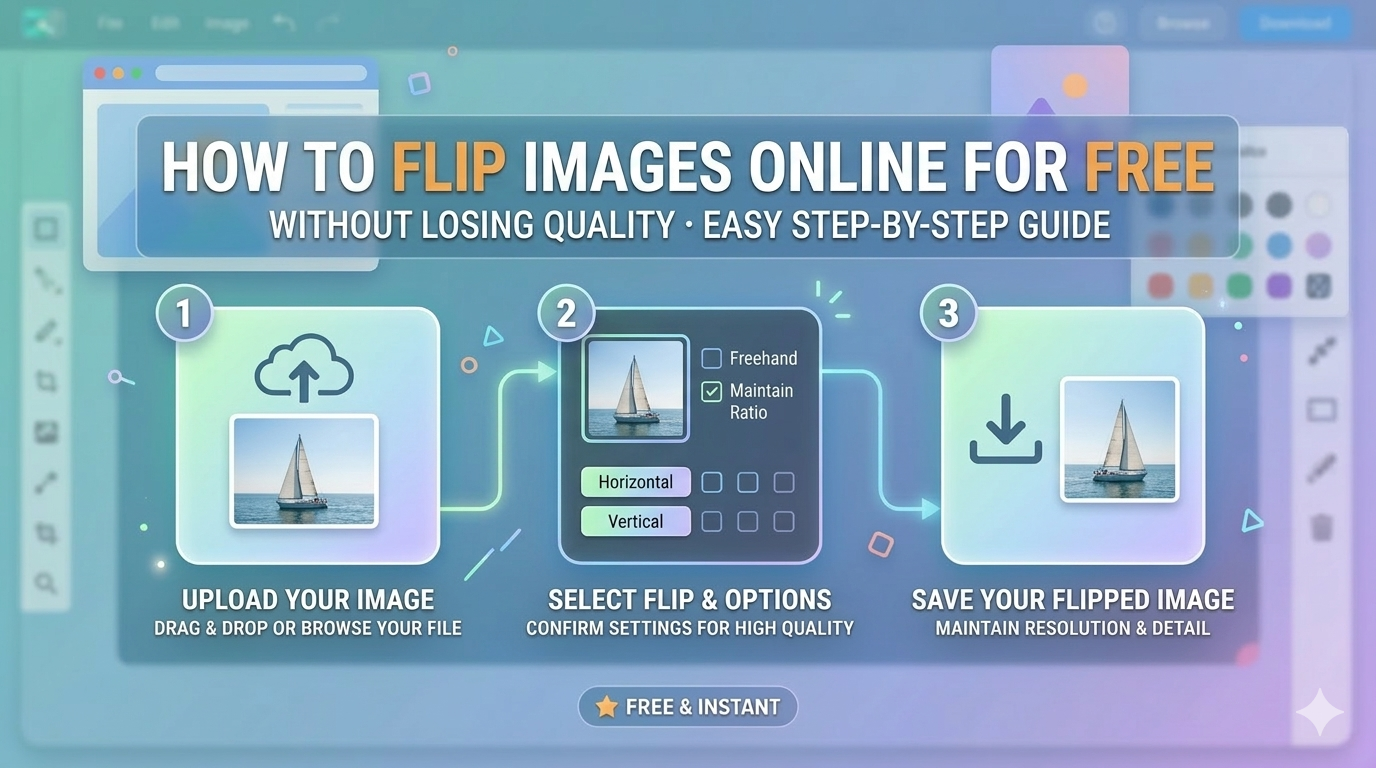
Step 1: Choose a Reliable Online Tool
Use a trusted image cropper tool that supports high-resolution images and does not compress files excessively.
Step 2: Upload Your Image
Click the upload button and select your image from your device.
Step 3: Select Crop Area
Adjust the crop box to select the portion of the image you want to keep.
Step 4: Maintain Aspect Ratio
Use preset ratios (1:1, 16:9, etc.) or customize according to your needs.
Step 5: Apply Crop
Click the crop button to process your image.
Step 6: Download in High Quality
Always choose the highest quality or original resolution option before downloading.
Best Practices to Avoid Quality Loss
1. Use High-Resolution Images
Start with a high-quality image to ensure better results after cropping.
2. Avoid Multiple Edits
Repeated editing and saving can reduce image quality.
3. Choose the Right Format
-
JPEG: Best for photos
-
PNG: Best for transparency and graphics
-
WebP: Best for web optimization
4. Don’t Over-Compress
Avoid tools that automatically reduce file size too much.
5. Keep Original Dimensions
Try not to excessively resize after cropping.
Features to Look for in an Image Cropper Tool
When selecting an online image cropper, ensure it offers:
-
High-quality output
-
No watermark
-
Fast processing
-
Multiple aspect ratios
-
Secure uploads
-
Free usage
Benefits of Using Online Image Croppers
-
No installation required
-
Works on any device
-
Quick and easy to use
-
Free access
-
Beginner-friendly interface
Common Use Cases
For Social Media
Crop images to fit Instagram, Facebook, or Twitter sizes.
For Websites
Optimize images for blogs, landing pages, and banners.
For E-commerce
Highlight products clearly by removing distractions.
For Personal Use
Edit photos for sharing or printing.
Common Mistakes to Avoid
-
Cropping too much detail
-
Using low-resolution images
-
Ignoring aspect ratios
-
Saving in low-quality formats
-
Using unreliable tools
SEO Tips for Image Optimization
-
Use descriptive file names (e.g., image-cropper-tool.jpg)
-
Add ALT text to images
-
Compress images properly
-
Use responsive image sizes
-
Choose modern formats like WebP
Conclusion
Cropping images online for free without losing quality is simple when you use the right tools and techniques. By following the steps and best practices outlined in this guide, you can maintain high-quality visuals for any purpose—whether it’s for social media, websites, or professional use.
Start using a reliable image cropper today and enhance your images effortlessly.
FAQs
Is it safe to crop images online?
Yes, as long as you use secure and trusted tools.
Will cropping reduce image quality?
No, if done correctly with a high-quality tool.
Which format is best after cropping?
JPEG for photos, PNG for graphics, and WebP for web use.
Can I crop images on mobile?
Yes, most online tools are mobile-friendly.
Popular Tools
Recent Posts